
How to export your Bitvavo transaction history
Bitvavo is one of the most popular crypto exchanges in the Benelux, with more than 200 coins and low trading fees. To track your crypto portfolio, work out your returns or use your transactions for your tax return, you need an export of your transaction history. This guide shows you, step by step, how to export your Bitvavo transactions as a CSV file.
Log in to Bitvavo
Go to the Bitvavo web platform and log in.
Go to your transaction history
Click your profile icon at the top right and go to "Transaction history".
Click "Export"
In your transaction history, click the "Export" button at the top right to start the export.

Click "Export" at the top right of your transaction history. Select "Full history (CSV)"
To export your entire transaction history, select "Full history (CSV)" in the menu, then click "Export".

Select "Full history (CSV)" in the menu.
Your Bitvavo transaction history is now a CSV file. You can use it for your tax return, open it in a spreadsheet or import it into a portfolio tracker to keep a clear view of your crypto portfolio.
Tip: upload your export to Plutu
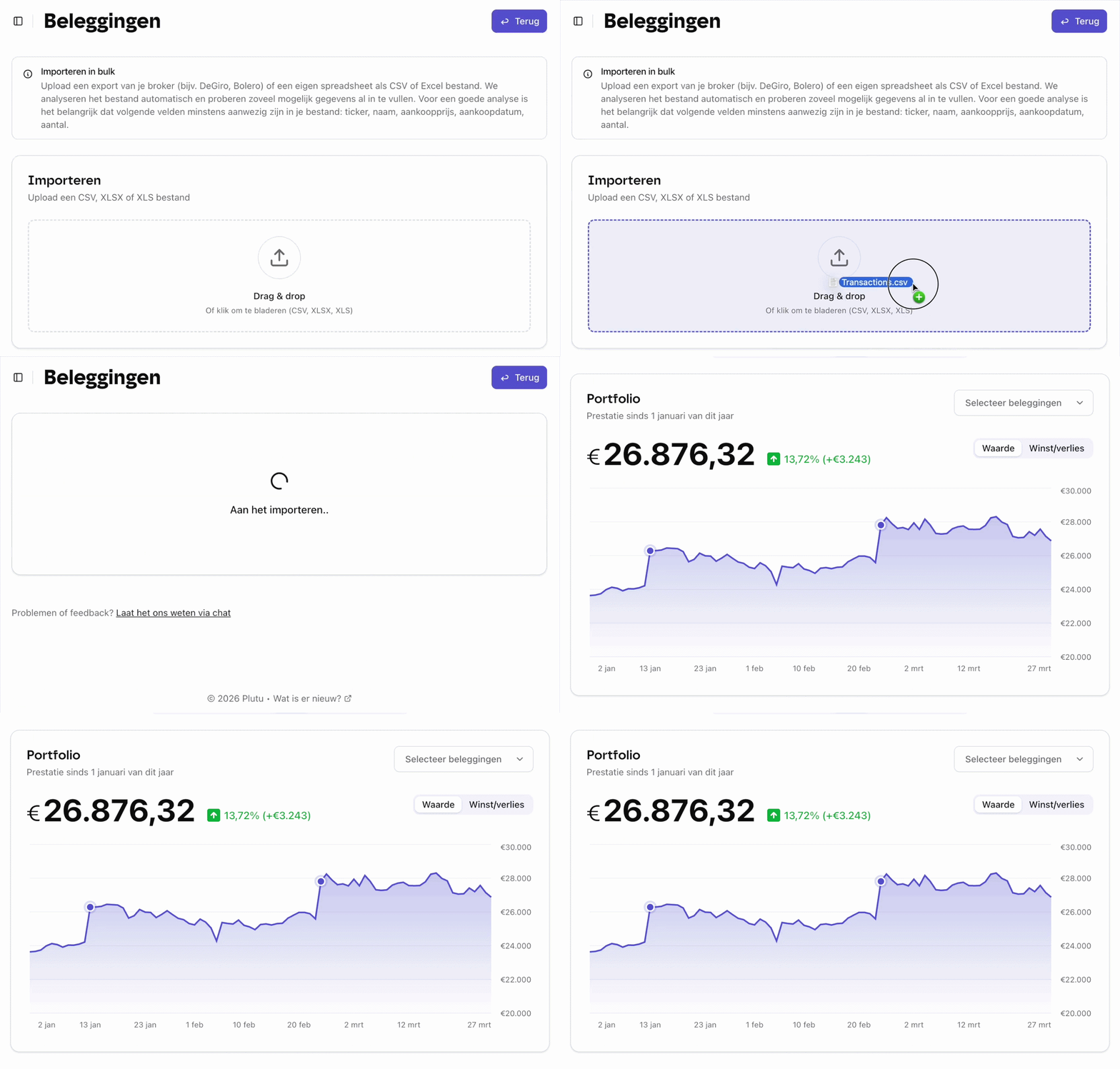
Upload your export file to Plutu and all your investments are tracked automatically: your shares, ETFs, funds and crypto together in one overview.
Frequently asked questions
- What’s in the export?
- For each transaction, the CSV file gives the date and time, the transaction type (buy, sell, deposit, withdrawal or staking), the cryptocurrency involved, the quantity, the price per unit, the total value in euros, the fees and a unique transaction ID.
- How far back does the Bitvavo export go?
- The "Full history (CSV)" option exports all your transactions from the day you created your Bitvavo account. There’s no period to set: you get a complete record of all your transactions in one go, which is ideal for your tax return or a portfolio tracker.
- Can I export from the Bitvavo app?
- No, the export is only available on the Bitvavo web platform, in a browser on your computer or your smartphone.