
How to export your Bolero transaction history
Bolero is KBC’s investment platform and one of the most widely used brokers in Belgium. You can trade shares, ETFs, funds and options there, on Euronext Brussels and other exchanges. Besides an overview of your current positions, Bolero lets you download your full transaction history: every purchase and every sale, with its date, quantity and price. That’s exactly what you need to work out your returns properly, keep track of your capital gains or import your positions into a portfolio tracker. Bolero only shows that history in small batches, though, so before you export you have to click "Laad meer" (Load more) yourself to bring older transactions into view. This guide shows you, step by step, how to export your full Bolero transaction history as an XLSX file without missing a single transaction. Bolero’s website is available in Dutch and French only, so the labels below are the Dutch ones, with their meaning in brackets.
Log in to Bolero
Go to the Bolero platform and log in with itsme, a Bolero digipass or a KBC/CBC card reader.
Go to your transaction history
In the sidebar, click "Rekeningen" (Accounts), then the "Transactiehistoriek" (Transaction history) tab in the row of tabs.
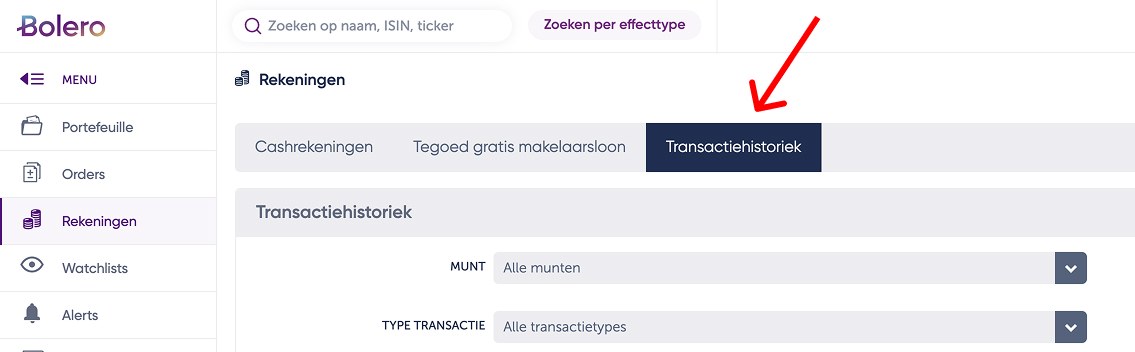
Open "Rekeningen" (Accounts) and choose the "Transactiehistoriek" (Transaction history) tab. Leave the filters on "Alle" (all)
Above your transactions are four filters: currency, transaction type, security type and account type. Leave each one on the option that starts with "Alle" (all) and click "Filter" to see your full history. If you only want to export part of it, set the filters now: the export follows exactly what you see in the table.
Click "Laad meer" (Load more) until your full history is loaded
Bolero doesn’t show the whole table at once. Scroll to the bottom of the table and click the purple "Laad meer" button. Repeat until every transaction you want to import is visible in the table. If you skip this step, you’ll only export the first, most recent page, and older purchases and sales will be missing.

Click "Laad meer" (Load more) until your full transaction history is in the table. Scroll back up and click the Excel icon
Scroll back to the top of the table and click the green Excel icon on the right, just above your transactions. The download starts straight away as an XLSX file, with every transaction loaded at that moment.
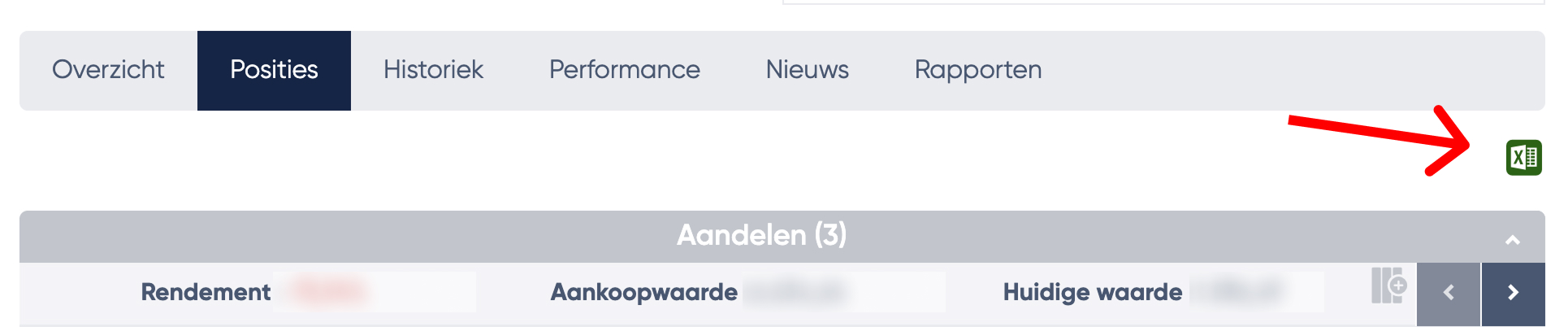
Click the green Excel icon at the top right of the table.
Your Bolero export is ready. For each transaction, the XLSX file gives the date, the value date, the description, the amount, the quantity, the price and the account type. For recent sales it also shows your profit or loss and the capital gains tax. If you clicked "Laad meer" often enough beforehand, the file holds all your purchases and all your sales, and a portfolio tracker can rebuild your positions and realised gains from it in full. You can also simply open the file in Excel or Google Sheets.
Tip: upload your export to Plutu
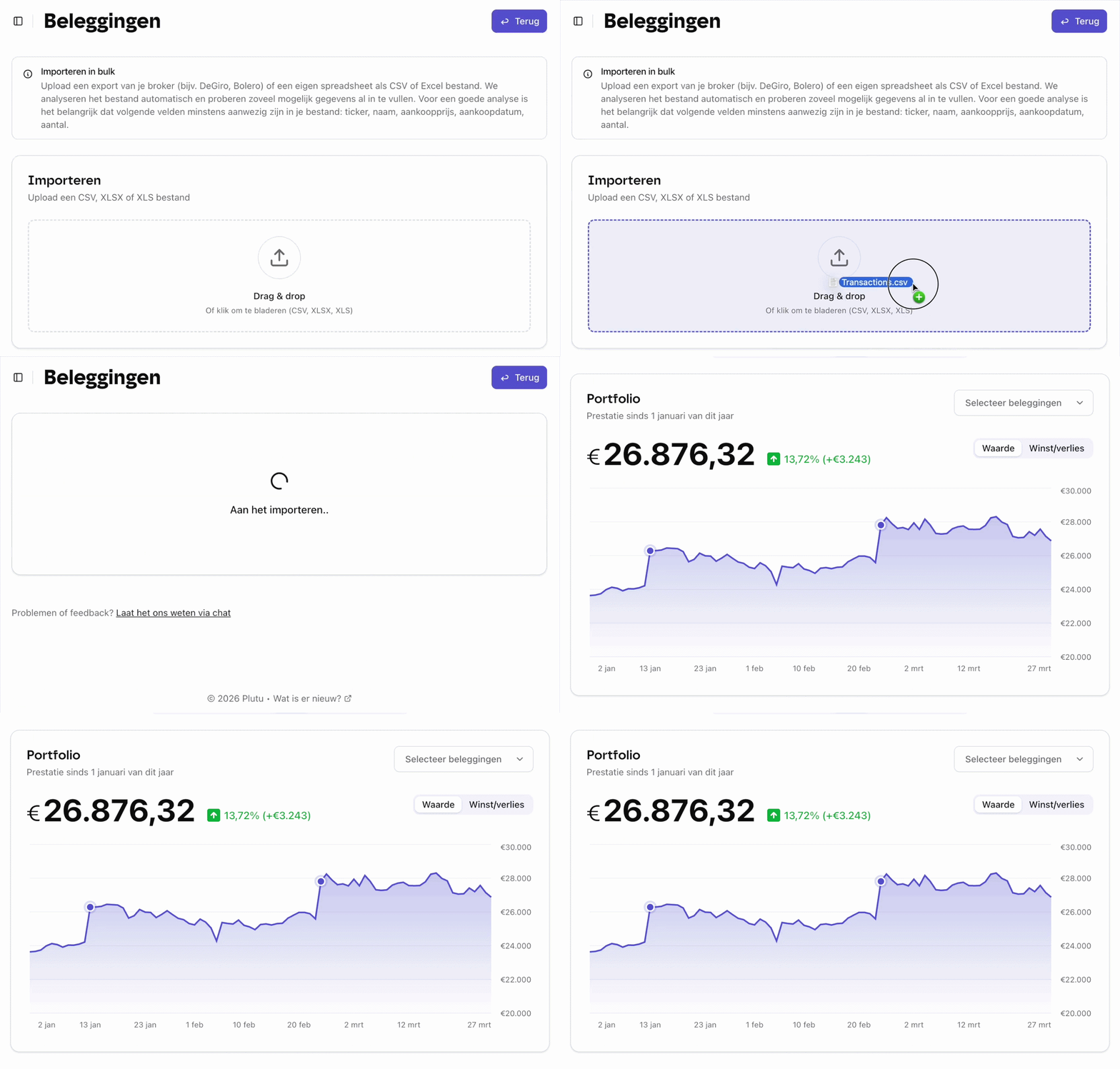
Upload your export file to Plutu and all your investments are tracked automatically: your shares, ETFs, funds and crypto together in one overview.
Frequently asked questions
- Can I export from the Bolero app?
- The export is only available on the Bolero web platform. The Bolero app lets you view your transactions, but not export them.
- What’s in the export?
- For each transaction: the transaction date, the value date, the description (for example "Aankoop Online BPOST NV (BR)", an online purchase of BPOST shares), the amount, the currency, the quantity, the price and the account type. It also shows the withholding tax on investment income and, for recent sales, the profit or loss and the capital gains tax. The file has no ticker or ISIN.
- Are my dividends and deposits in it too?
- Yes. The transaction history shows every movement on your account, so dividends, deposits, transfers and costs as well. For tracking your positions, only the lines that start with "Aankoop" (purchase) or "Verkoop" (sale) count.
- Why are older transactions missing from my export?
- Bolero loads the transaction history in batches and only exports the rows loaded in the table at that moment. Go back to "Rekeningen" → "Transactiehistoriek", click "Laad meer" at the bottom of the table as many times as it takes to show your full history, and only then click the Excel icon.
- How do I export only my current positions?
- In the sidebar, go to "Portefeuille" (Portfolio) and choose "Posities" (Positions) in the row of tabs. You’ll find the same Excel icon there. That export only shows what you own today, though, without purchase dates and without your sales. To import into a portfolio tracker, you need the transaction history from this guide.