
How to export your DEGIRO transactions to CSV
DEGIRO is one of the most popular online brokers in the Benelux, known for low transaction costs and a wide range of shares, ETFs and options on exchanges around the world. To track your investments in a portfolio tracker, work out your returns and capital gains or use them for your tax return, you need your transactions: every purchase and every sale, with its date, quantity and price. DEGIRO puts these in an export of their own, separate from the account statement with your deposits, dividends and costs. This guide shows you, step by step, how to export your DEGIRO transactions as a CSV file. The screenshots show the platform in Dutch.
Log in to your DEGIRO account
Go to the DEGIRO website and log in with your username and password. Use a computer: you can’t export from the app.
Optional: open the DEGIRO app
If DEGIRO asks you to confirm the login, open the DEGIRO app and approve it there.
Go to your transactions
In the sidebar, click "Inbox", then "Transactions" in the row of tabs. Don’t choose "Account statement": that mostly lists deposits, dividends and costs, and shows your purchases and sales only as a short description.
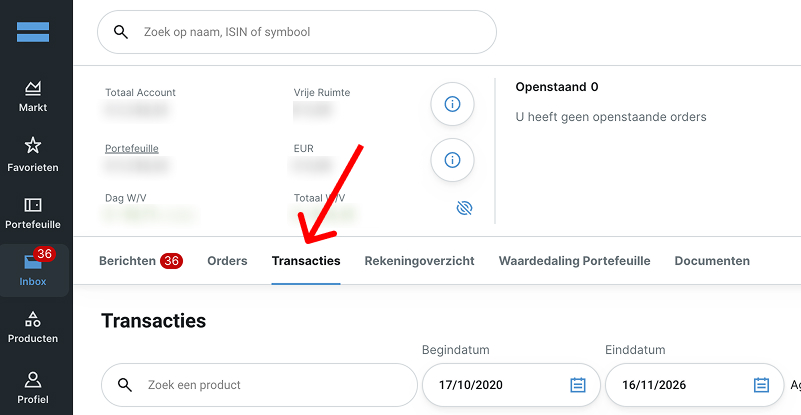
Open "Inbox" and choose "Transactions", not "Account statement" (shown here in Dutch as "Transacties" and "Rekeningoverzicht"). Select the period
Choose a start date before your first purchase at DEGIRO and leave the end date set to today. That way the export holds all your transactions, including those of investments you’ve since sold.

Choose a start date before your first purchase. Click the download button on the right of the screen
You’ll find the download button on the right, level with the date fields. Leave the "Aggregeer op order" (aggregate by order) switch off, so each execution of an order keeps a line of its own.

Click the download button on the right. Leave "Aggregeer op order" (aggregate by order) off. Choose CSV as the file type
Choose the CSV format. The file downloads to your computer automatically.

Choose CSV to download your export file.
Your DEGIRO export is ready to use. For each transaction, the CSV file gives the date, the product and its ISIN, the exchange, the quantity, the price, the value in euros, the exchange rate and the transaction costs. You can open it in Excel or Google Sheets, or import it into a portfolio tracker to keep a clear view of your investments.
Tip: upload your export to Plutu
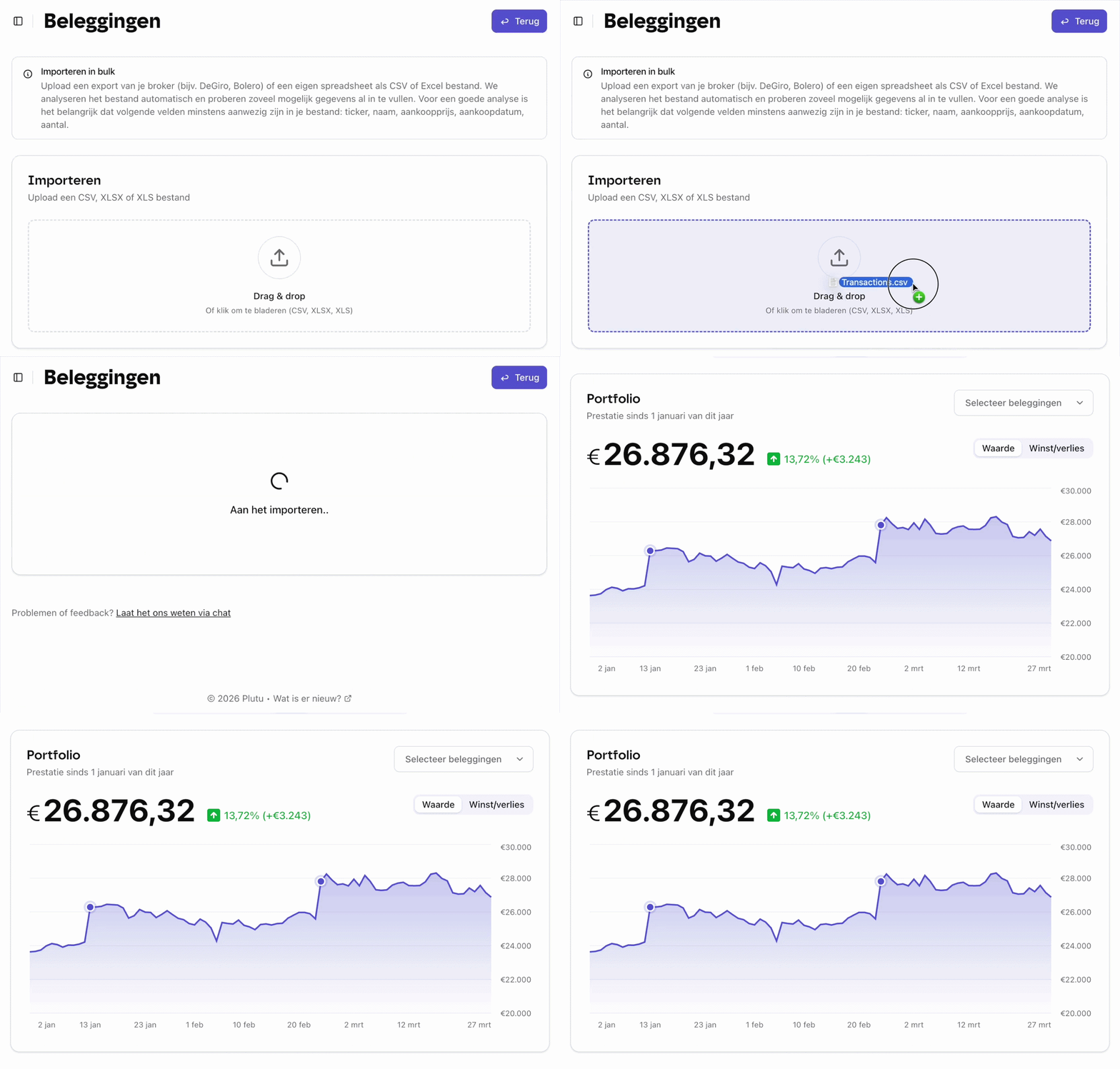
Upload your export file to Plutu and all your investments are tracked automatically: your shares, ETFs, funds and crypto together in one overview.
Frequently asked questions
- What’s in the DEGIRO export?
- For each transaction: the date and time, the product name and ISIN, the exchange, the quantity (negative for a sale), the price and its currency, the value in euros, the exchange rate, the transaction costs, the total amount and the order ID.
- What’s the difference between "Transactions" and "Account statement"?
- "Transactions" shows only your purchases and sales, with the quantity and price of each in separate columns. "Account statement" shows every movement of money on your account: deposits, dividends, costs, stock exchange tax (TOB) and currency exchanges, with your purchases and sales in between as a short description. To build up your positions and capital gains, use "Transactions".
- Are my dividends and deposits in it as well?
- No. The transactions export only holds purchases and sales. You’ll find dividends, deposits and costs in the account statement.
- In which formats can I export my DEGIRO transactions?
- DEGIRO offers CSV, XLS (Excel) and PDF. To import your transactions into a portfolio tracker, CSV is the best choice.
- Does the export include investments I’ve sold?
- Yes, as long as your start date is before the purchase. Each sale appears as a transaction with a negative quantity.
- Can I export from the DEGIRO mobile app?
- No, the export (CSV, XLS or PDF) is only available in the desktop version of the DEGIRO platform. In the app you can view your portfolio and place orders, but not download your transactions.
- I have more than one DEGIRO account. How do I go about it?
- Make one export per account: log in to the other account and repeat the steps. In Plutu you upload the files one by one, so there’s no need to merge them yourself.