
How to export your Keytrade Bank transaction history
Keytrade Bank is a Belgian online bank and broker where you can invest in shares, ETFs, funds, bonds and options on exchanges around the world. To work out your returns properly, keep track of your capital gains or import your investments into a portfolio tracker, you need your transaction history: every purchase and every sale, with its date, quantity and price. Keytrade lets you export that history to Excel, up to 2 years at a time. This guide takes you through the export step by step, and shows how to get a longer history as well. Keytrade’s website comes in English, Dutch and French; the labels quoted below are those of the Dutch version, with their meaning in brackets.
Log in to the Keytrade Bank website
Go to the Keytrade Bank website and log in. Use a computer: the export only exists on the website, not in the mobile app.
Go to "Beleggen" (Investing)
At the top left, click "BELEGGEN" (Investing), then choose "DASHBOARD" or "PORTEFEUILLE" (Portfolio).
Select your securities account
Choose the securities account you want to export. If you have more than one securities account at Keytrade, repeat the next steps for each of them.
Open the "Transacties" (Transactions) tab
Scroll down to "DETAILS VAN UW PORTEFEUILLE" (details of your portfolio) and click the "TRANSACTIES" (Transactions) tab.
Set the period
Pick the start and end date of the transactions you want to export. Keytrade allows no more than 2 years per search, so you could start on the day you opened your account and move forward 2 years at a time.
Click the three dots and choose "Export portfolio"
At the top, click the three dots (...) and select "Export portfolio". This downloads an Excel file. In it, open the "Transacties" (Transactions) sheet from the tabs at the bottom: it lists your purchases and sales over the period you chose, with the price of each transaction.
Repeat for every 2-year period
If you’ve been investing with Keytrade for more than 2 years, set the next period and export again, until you have your full history since the account was opened. Make sure the periods join up exactly, so no transactions fall between two exports.
Your Keytrade transaction history is now in one or more Excel files (XLSX). You can open them in Excel or Google Sheets, or import them into a portfolio tracker. In Plutu, just upload the files one by one: there’s no need to merge them first.
Tip: upload your export to Plutu
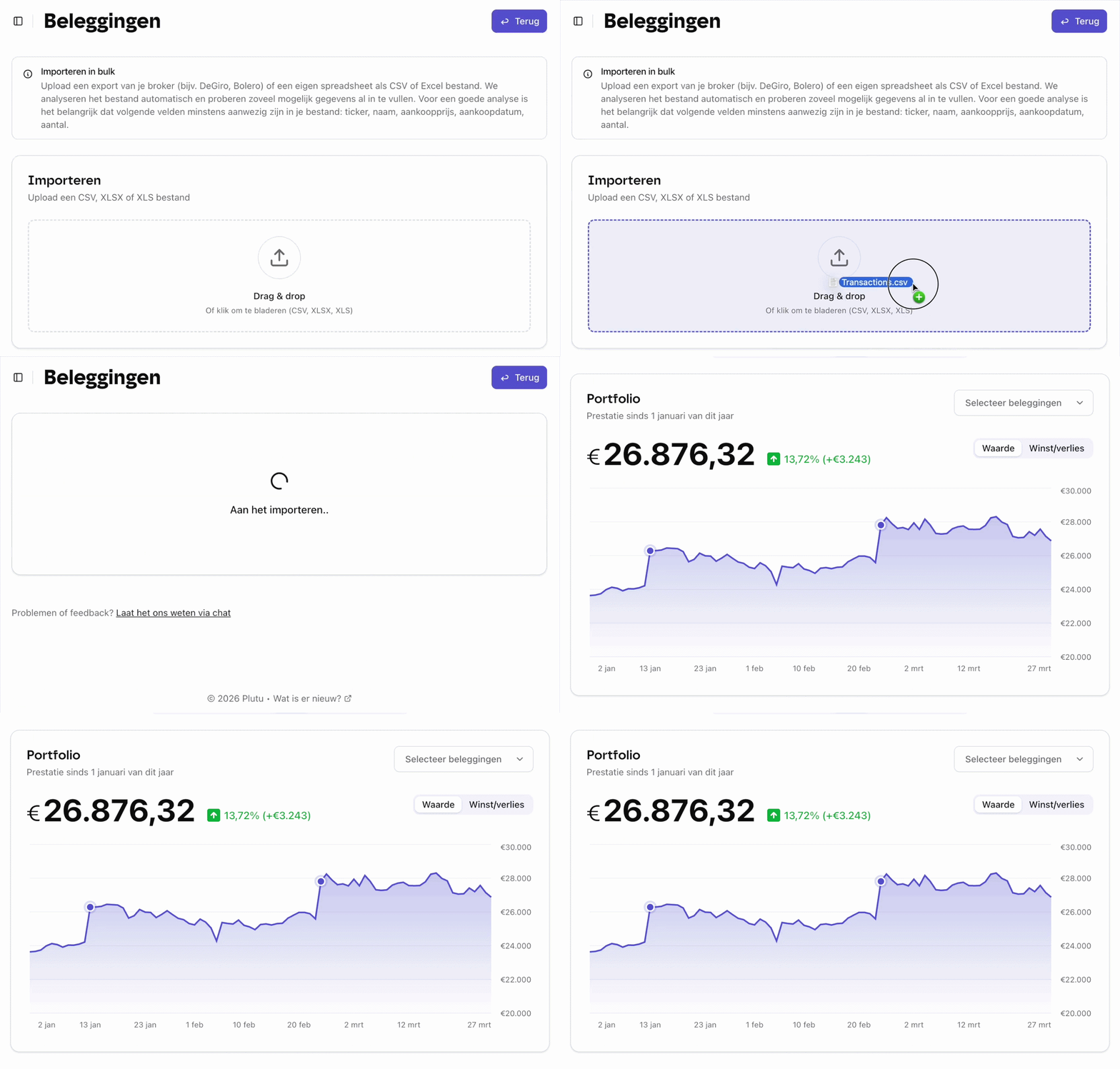
Upload your export file to Plutu and all your investments are tracked automatically: your shares, ETFs, funds and crypto together in one overview.
Frequently asked questions
- Can I export from the Keytrade app?
- No. The export is only available on the Keytrade Bank website. The mobile app lets you view your transactions, but not export them.
- How far back can I go in one export?
- One search covers 2 years at most. For your full history since you opened your account, make several 2-year exports that join up.
- Do I need to merge my exports?
- Not for Plutu: you upload each file separately. If you want everything in one spreadsheet, copy the rows from the "Transacties" (Transactions) sheet of each file one below the other in Excel or Google Sheets.
- What’s in the export?
- The Excel file holds an overview of your portfolio and, in a separate sheet called "Transacties" (Transactions), your purchases and sales over the period you chose, with the price details of each transaction.
- I have more than one securities account at Keytrade. What should I do?
- Keytrade exports the account you selected in step 3. Then select your other securities account and repeat the steps, so you have one export per account.