
How to export your Saxo Bank transaction history
Saxo Bank is a Danish investment bank that grew fast in the Benelux after taking over BinckBank. On its SaxoInvestor and SaxoTraderGO platforms you can trade shares, ETFs, bonds and options on exchanges around the world. To track your investments in a portfolio tracker, analyse them in a spreadsheet or use them for your tax return, you need an export of your transaction history. This guide shows you, step by step, how to export your Saxo transactions as an Excel file. Saxo’s Belgian website is in Dutch and French, and the screenshots show the platform in Dutch.
Log in to your Saxo account
Go to the Saxo website and log in to SaxoInvestor or SaxoTraderGO. The steps are the same on both platforms. The export works best in a browser on your computer.
Go to your transactions
In the main menu, click "Portfolio", then the "Transactions" tab in the row of tabs below it.
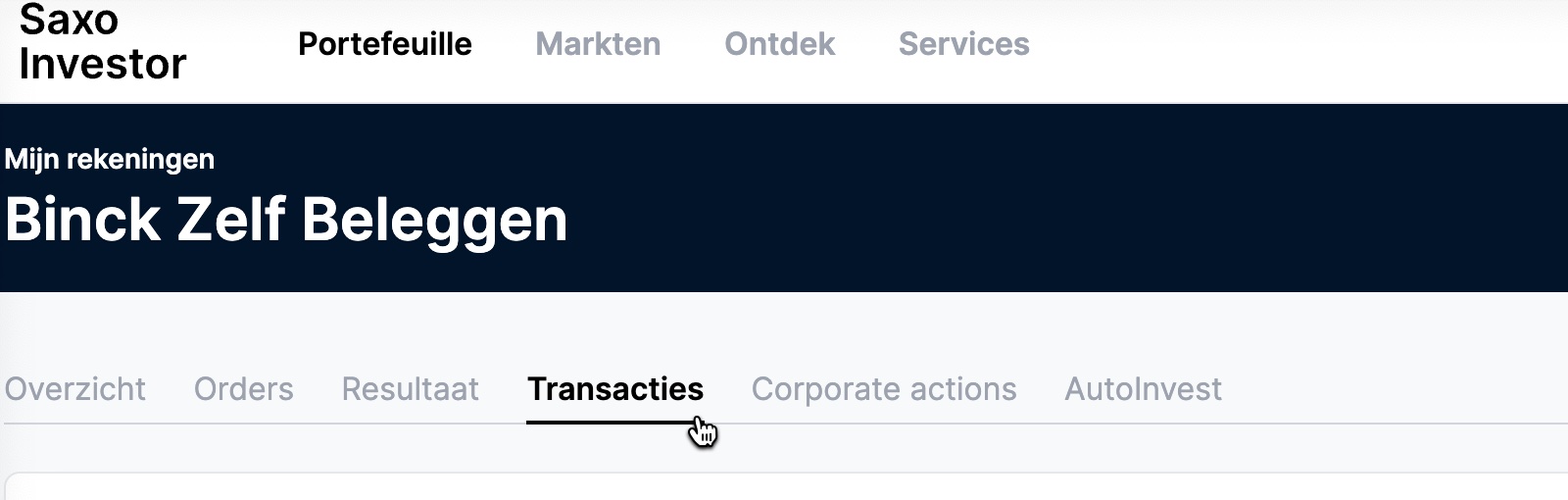
Open "Portfolio" and choose the "Transactions" tab, shown here in Dutch as "Portefeuille" and "Transacties". Select the "Max" period
Above the timeline, click "Max" (the full period) to show your entire transaction history. If you only need part of your transactions, you can set a start and end date yourself instead.
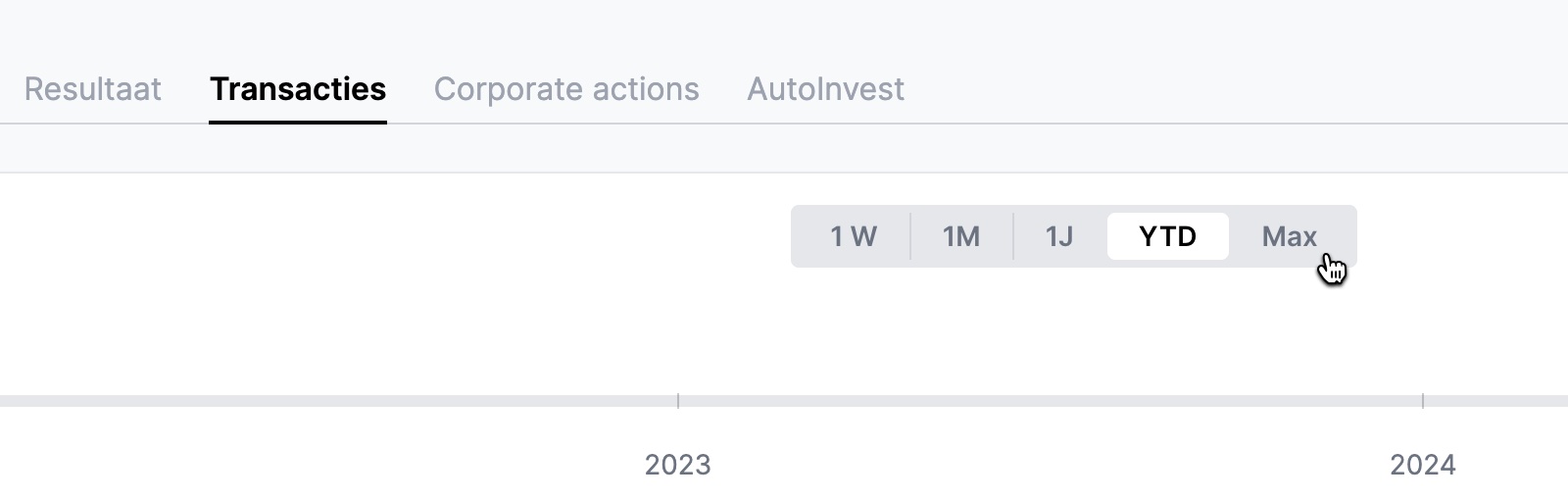
Select "Max" to include all your transactions in the export. Click "Export"
Click the "Export" button at the top right of your list of transactions.
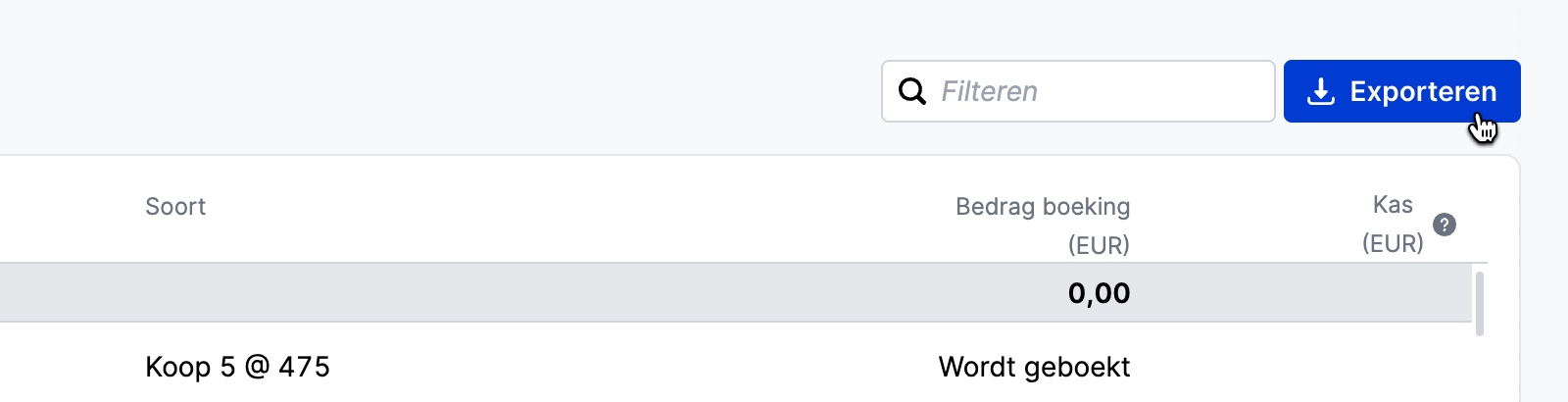
Click "Export" ("Exporteren" in Dutch) at the top right of the transaction list. Turn on "Show details" and choose Excel
In the export window, switch on "Show details" so the file includes every transaction detail, such as transaction costs. Then choose "Excel" as the file format. The file downloads to your computer automatically.
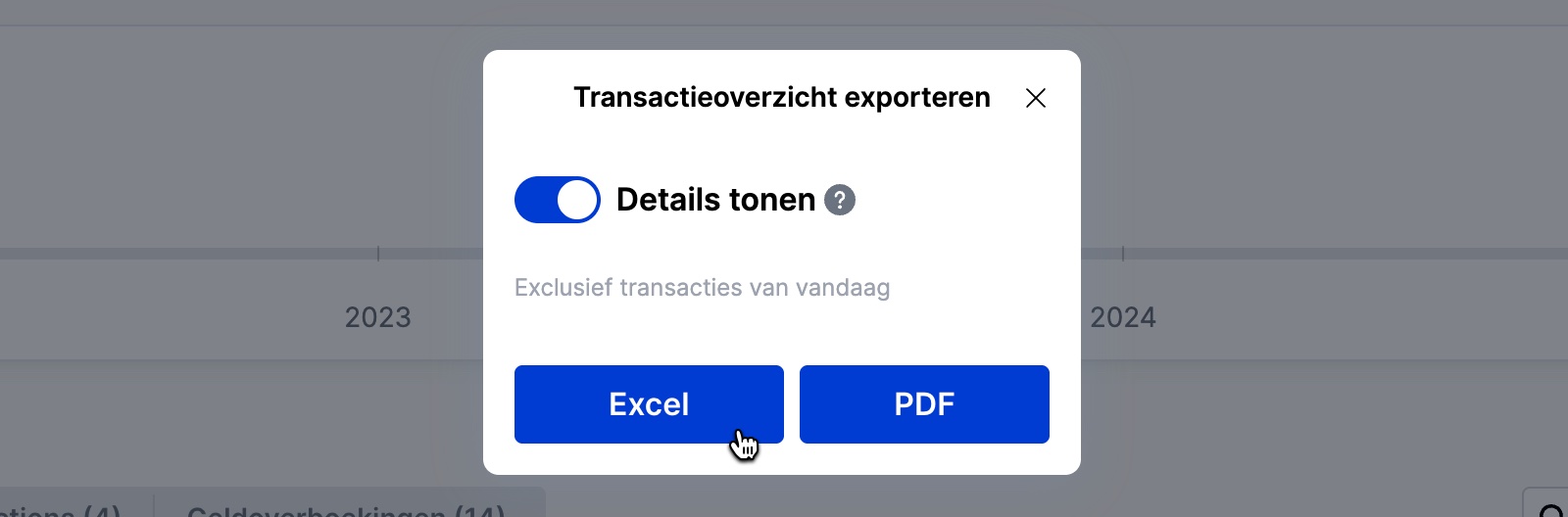
Turn on "Show details" ("Details tonen" in Dutch) and choose "Excel" as the file format. Repeat for each Saxo account
If you have more than one Saxo account, for example several SelfInvest accounts, or a SelfInvest and an AutoInvest account, switch to the other account and repeat these steps. Saxo only exports the transactions of the account you have selected at the time.
Your Saxo transaction history is now an Excel file (XLSX). You can open it in Excel or Google Sheets, use it for your tax return, or import it into a portfolio tracker to keep a clear view of your investments.
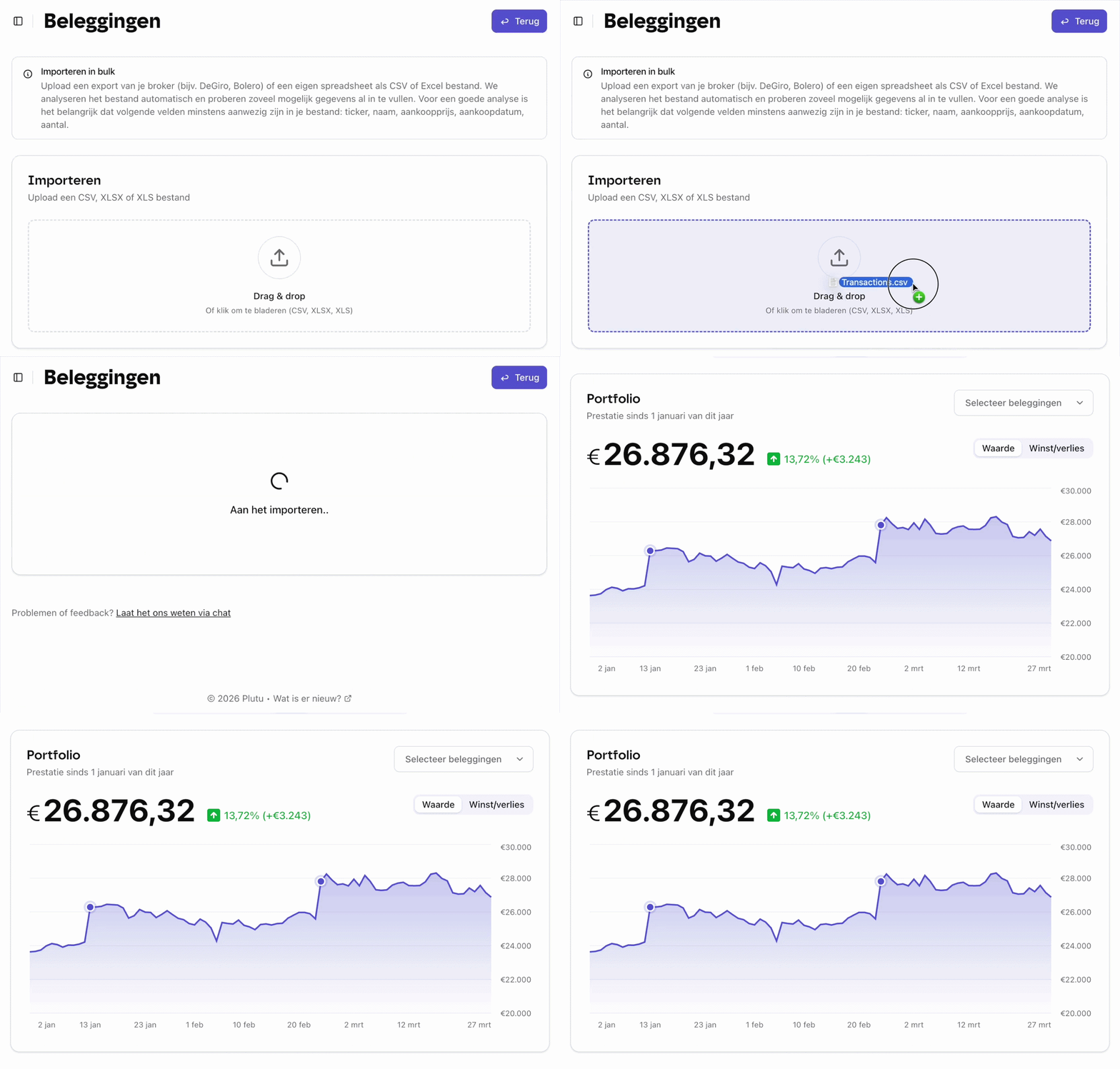
Tip: upload your export to Plutu
Upload your export file to Plutu and all your investments are tracked automatically: your shares, ETFs, funds and crypto together in one overview.
Frequently asked questions
- What’s in the Saxo export?
- For each transaction, the export includes the instrument, the account, the order type (buy or sell), the quantity, the price, the trade date, the amount and the realised profit or loss, among other things. With "Show details" switched on, it also includes every transaction detail, such as transaction costs.
- In which formats can I export my Saxo transactions?
- Saxo offers Excel (XLSX) and PDF. To import your transactions into a portfolio tracker or analyse them in a spreadsheet, Excel is the better choice.
- Can I filter by transaction type?
- Yes. Above the list you can switch between all transactions, orders (purchases and sales), corporate actions (dividends and coupons, among others) and cash transfers (deposits and withdrawals). The filter narrows the list down further, for example to purchases or sales only.
- Can I export from the Saxo app?
- Exporting is easiest on the SaxoInvestor or SaxoTraderGO web platform, in a browser on your computer. The mobile app shows your transactions, but its export options are limited.
- How far back does the Saxo export go?
- The "Max" period exports every transaction available in your Saxo account. If you moved from BinckBank to Saxo, transactions from before the migration may not all appear in the transaction list. You’ll find older account statements under "Historische rapporten" (Historical reports).
- I have several Saxo accounts. Do I need several exports?
- Yes. Saxo only exports the transactions of the account you have selected at the time. If you have several SelfInvest accounts, or a SelfInvest and an AutoInvest account, repeat the steps for each of them: switch to the other account in SaxoInvestor or SaxoTraderGO and export again.